Attach'd automatically saves every email attachment from Outlook straight into your folders — organized, instant, and effortless. Download it once, set it up in minutes, and you'll barely think about it again.
Every time an email with an attachment arrives in your Outlook inbox, Attach'd quietly saves it to the folder you choose. All automatic, in the background, without you lifting a finger. No more digging through your inbox or "I know I have that file somewhere." Just open your folder and it's already there.
It's not another platform to learn. It just runs silently in the background from the moment Windows starts, set it up once and forget it exists, until you realize you have saved hours not searching for files.
As a Project Manager in construction, every day I watched myself and coworkers waste significant time hunting through email threads trying to find files. Whether they were sent yesterday or months earlier, it was a consistent problem. The files were there, just buried through hundreds of emails or unhelpful search results.
I didn't want another software platform for the team to learn, or a complex setup. I wanted something that was simple and solved the problem without creating a new one. So I built Attach'd, which does just that, exceptionally well.
Download the Attach'd installer and run it once. No complex setup, within a couple of minutes you're up and running. As soon as you open Attach'd, it starts monitoring your inbox. Minimize it and it keeps running. You no longer need to keep the window open. Attach'd lives in your system tray, accessible any time from the Windows taskbar.
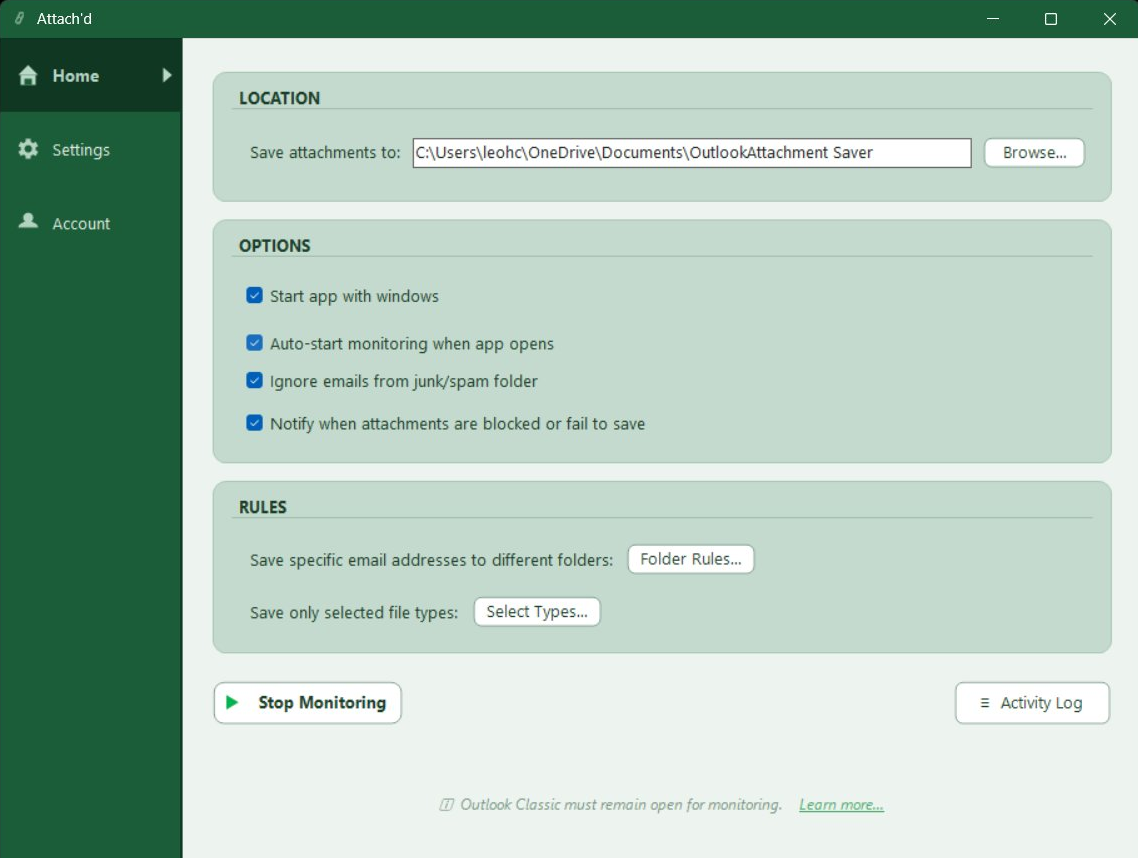
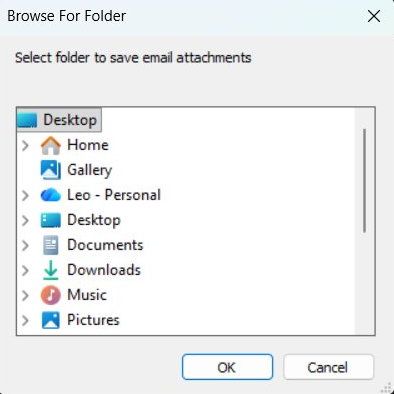
Under Location, click Browse and select any folder on your computer or network drive. Every incoming attachment will be saved there, this is your central home for all received files.
The best part is that they won't just be saved as a list of files, like your Downloads folder you lose track of. It automatically saves the file in a folder named as the sender's email address, then a sub-folder of the email's timestamp, then another sub-folder of the email's subject.
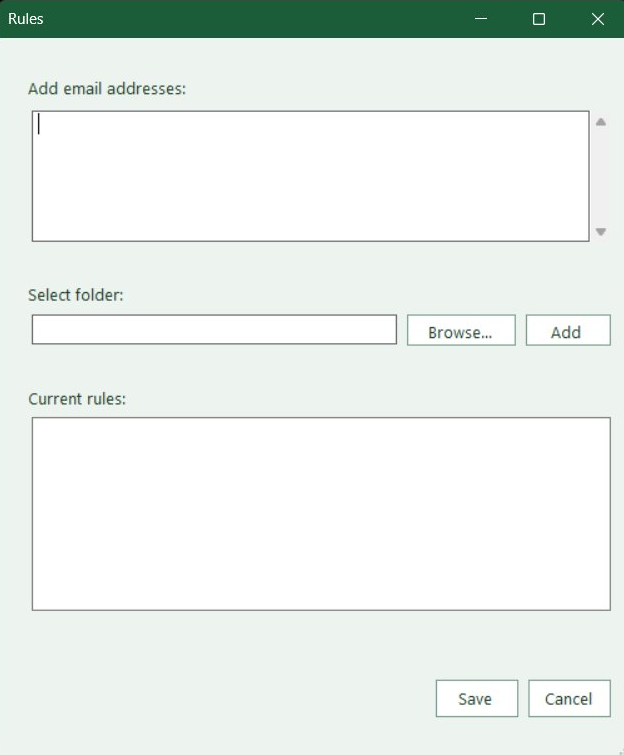
Want files from a specific person or company routed to their own folder? Under Rules, click Folder Rules to do just that. Add any email address and assign it a different designation. Attach'd automatically handles the sorting for you every single time.
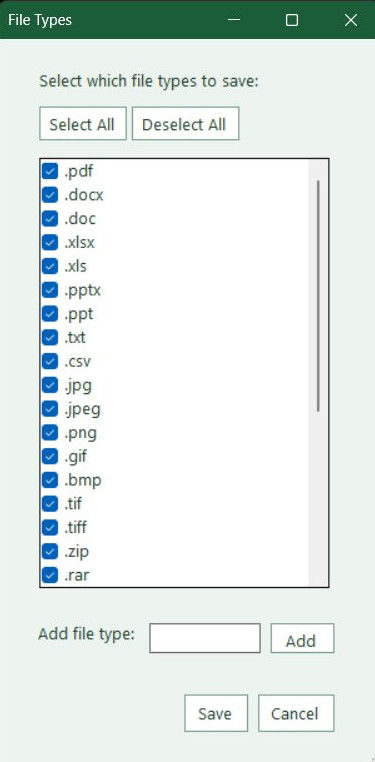
Under Rules, click Select Types to choose exactly which file types to save — PDFs, Word docs, Excel files, images, ZIP files, and more. You can even add custom extensions. Save what matters, skip the rest.
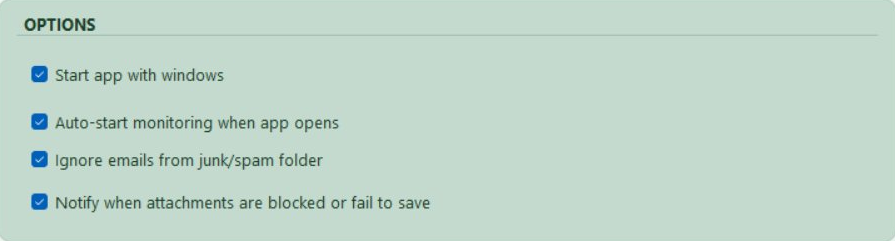
Start app with Windows — Launches automatically so you never forget to open it.
Auto-start monitoring when app opens — Starts watching your inbox the moment it loads.
Ignore emails from junk/spam — Keeps junk attachments out of your folders.
Notify when attachments fail to save — You'll immediately get a notification in your Windows taskbar if anything goes wrong with saving an attachment.
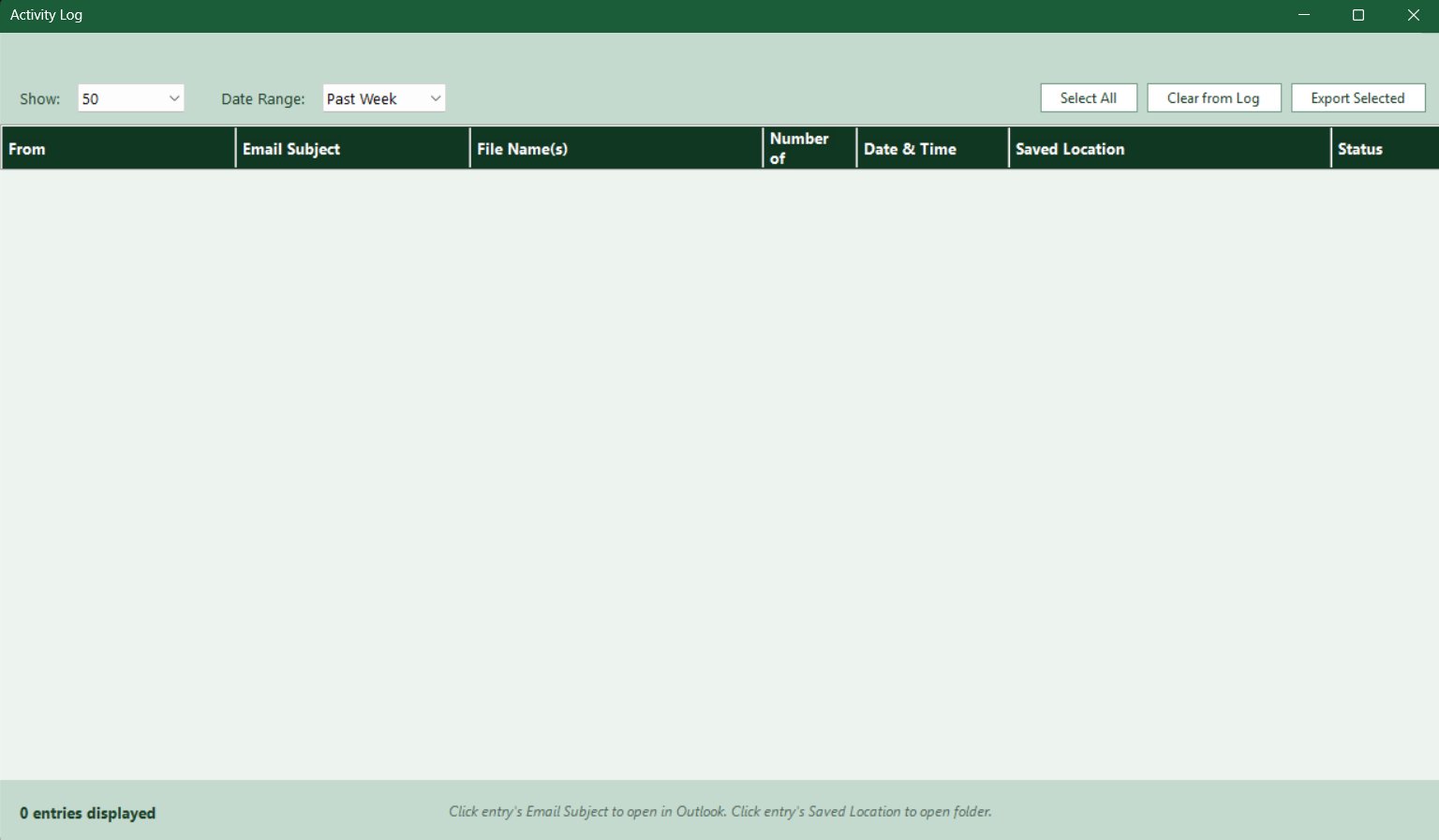
Our favorite feature is the Activity Log, where everything comes together. Every attachment saved is logged here. Sorted by sender, email subject, file name, number of files, date and time, save location, and status.
On any line item, click on the email subject to open it directly in Outlook. Click on the saved location to open that folder directly in Windows Explorer. Filter by date range, export entries, or clear old logs. It's a complete, searchable history of every file that's ever come through your inbox.
Interested in being a user or partner?
Contact us at useattachd@gmail.com